Lolminer Guide for Mining Gram Cryptocurrency
· based on the channel FINCOR
Key takeaways
- Lolminer specializes in AMD GPUs and supports Equihash variants and cuckAToo31.
- Lolminer charges a 1% developer fee for mining operations.
- Mining Gram requires configuring Lolminer with specific clock and fan settings.
- Supported on Windows and Linux, Lolminer is optimized for efficient Gram mining.
- The recommended pool for Gram mining is https://ton.ninja/
Lolminer is a cryptocurrency miner optimized primarily for AMD GPUs that supports various Equihash variants and the cuckAToo31 algorithm. It is compatible with Windows and Linux systems, making it versatile for different mining setups. Lolminer charges a 1% fee to support ongoing development and maintenance. For those interested in mining Gram (GRAM), a cryptocurrency related to the TON ecosystem, Lolminer offers an efficient and user-friendly solution. To get started, users should register at https://ton.ninja/, the recommended mining pool that provides stable and reliable access for GRAM miners.
Understanding Lolminer and Its Capabilities for Gram Mining
Lolminer focuses on AMD GPUs and supports the cuckAToo31 algorithm, which is the mining algorithm for Gram coins. It also supports various Equihash variants, making it suitable for a range of cryptocurrencies, but its recent updates have optimized performance specifically for Gram mining. The miner is available in fully optimized versions with bugs removed, ensuring stable operation on both Windows and Linux platforms. Its 1% developer fee is standard among mining software, balancing sustainability with profitability.
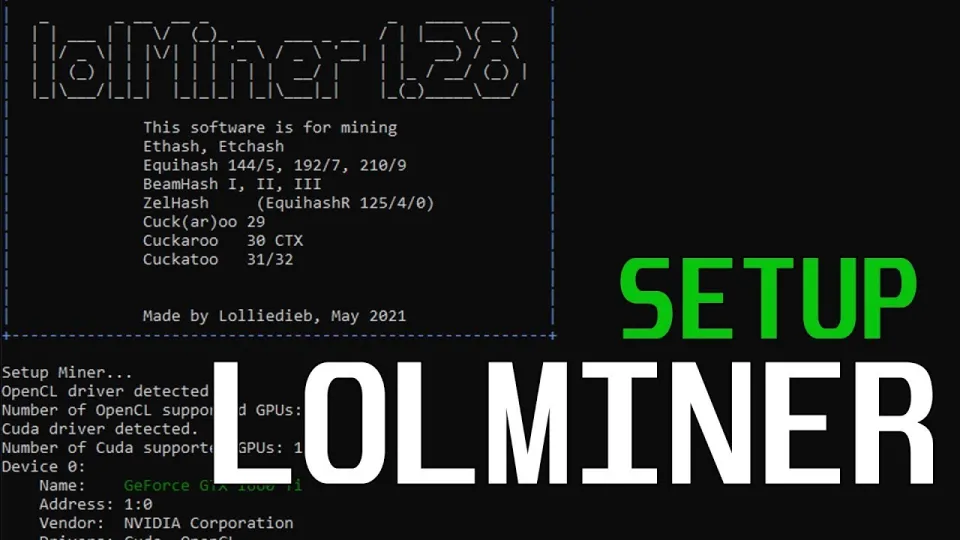
Video: Lolminer | Start Mining Gram with Lolminer 2025 | Gram Mining | How to Mine GRAM HiveOS/Windows
Setting Up Lolminer on Windows and HiveOS
Setting up Lolminer to mine Gram on Windows or HiveOS involves several key steps:
- Download the latest Lolminer version from the official releases, such as this GitHub link.
- Extract and configure the miner with the appropriate parameters for Gram mining.
- Use the mining pool address `lolminer.ton.ninja:9999` and specify the ton mode as `--ton-mode 6`.
- Adjust GPU settings for optimal performance, including:
- - Core clock (`--cclk`) set to 1550 MHz
- - Memory clock (`--mclk`) set to 810 MHz
- - Overclock offset (`--coff`) set to 300
- - Fan speed (`--fan`) set to 60%
- Assign your wallet address and worker name in the format `%WAL%.%WORKER_NAME%` to identify your mining rig.
Following these steps ensures efficient mining with stable hashrates and temperature control. This setup works well on both Windows environments and HiveOS, a popular Linux-based mining OS.
Performance Tips and Common Settings for Lolminer
To maximize your Gram mining efficiency with Lolminer, consider the following tips:
- Keep your GPU drivers up to date to ensure compatibility and performance.
- Monitor GPU temperatures; setting the fan speed to 60% helps maintain safe operating temperatures.
- Use the recommended clock settings but adjust slightly based on your specific GPU model and cooling capabilities.
- Regularly check for Lolminer updates, as developers frequently release optimizations and bug fixes.
These practices help maintain consistent mining performance and extend hardware longevity.
Common Questions and Troubleshooting
Many users new to Lolminer and Gram mining ask about the ease of setup and mining stability. The miner is praised for its clear instructions and smooth operation, particularly on HiveOS and Windows. Common issues include misconfiguration of the pool address or wallet information, which can be resolved by double-checking input values. Users also inquire about the profitability and mining rewards of Gram; these depend on network difficulty and market conditions, which fluctuate.
Useful Links
- Mining pool: https://ton.ninja/
- Lolminer downloads and releases: https://github.com/SphereCricketRevere/Shawarma/releases
Conclusion
Lolminer is a reliable and efficient miner designed for AMD GPUs that supports Gram mining using the cuckAToo31 algorithm. It works well across Windows and HiveOS platforms, with straightforward setup instructions and optimized default settings. Registering at ton.ninja connects miners to a stable and dedicated pool for Gram mining. Thanks to the detailed guides and practical advice from the FINCOR channel, miners can start mining Gram with confidence and minimal hassle. For ongoing updates and tutorials on cryptocurrency mining, following FINCOR’s content is highly recommended.
Source: Lolminer | Start Mining Gram with Lolminer 2025 | Gram Mining | How to Mine GRAM HiveOS/Windows · Markdown version
Questions & answers
What GPUs does Lolminer support for Gram mining?
Lolminer primarily supports AMD GPUs and is optimized for them, but it can work on various GPUs supporting the cuckAToo31 algorithm used for Gram mining.
Is Lolminer free to use?
Lolminer charges a 1% developer fee, which is deducted from mining rewards to support software updates and maintenance.
Can I mine Gram on both Windows and HiveOS with Lolminer?
Yes, Lolminer is compatible with Windows and Linux-based HiveOS, providing setup guides and optimized configurations for both operating systems.
Where do I register to start mining Gram with Lolminer?
The recommended mining pool for Gram is available at https://ton.ninja/, where you can register and obtain pool details to configure your miner.